
Download Secret Folder – Secure File Hiding Tool for Windows & macOS
Overview
In an age where data privacy is more than a buzz‑word, Secret Folder offers a straightforward, no‑frills solution for users who simply want to keep particular files and directories out of sight. Whether you’re protecting personal photos, confidential work documents, or any other sensitive material, this lightweight application creates a virtual vault that hides selected items from standard file explorers. The interface is intentionally minimalistic: you choose a folder, toggle its hidden status, and the app takes care of the rest.
No encryption is performed, so the focus remains on obscurity rather than cryptographic security—ideal for everyday privacy needs without the performance overhead of full‑disk encryption. Secret Folder runs on both Windows and macOS, making it a versatile companion for cross‑platform users. Its free version provides core hiding functionality, while a premium upgrade unlocks password protection and auto‑hide features for power users.
By integrating seamlessly with the operating system’s native file manager, Secret Folder ensures that hidden items remain invisible during routine browsing, yet can be accessed instantly through the app whenever you need them.
Key Features
- Simple Hide/Show Toggle: One‑click operation to hide or reveal selected folders.
- Cross‑Platform Support: Fully compatible with Windows 10/11 and macOS Catalina and later.
- Password‑Protected Access (Premium): Add a PIN or password to prevent unauthorized opening of the secret vault.
- Auto‑Hide Scheduler (Premium): Set time‑based rules so folders automatically hide during specific hours.
- Lightweight Footprint: Uses less than 15 MB of RAM and negligible CPU cycles.
- Drag‑and‑Drop Interface: Intuitive UI lets you move files into the secret area with a simple drag.
- Secure Update Mechanism: Automatic, signed updates keep the software current without compromising safety.
- No Encryption Overhead: Focuses on obscurity, avoiding the latency of heavy encryption algorithms.
Installation, Setup & Compatibility
Step‑by‑Step Installation Guide
1. Download the Installer: Visit the official Secret Folder website and click the “Download for Windows” or “Download for macOS” button. The installer is digitally signed, ensuring a secure download.
2.
Run the Installer: On Windows, double‑click the .exe file; on macOS, open the .dmg and drag the app to your Applications folder.
3. Grant Permissions: The first launch prompts you to allow file system access. Accept the request so the app can modify folder attributes.
4.
Initial Configuration: A quick wizard asks you to create a default secret folder location. You can keep the suggested path or choose a custom directory.
5. Finish & Launch: After installation, the app adds a tray/icon shortcut for easy access.
Click it to open the main dashboard.
How to Hide Files
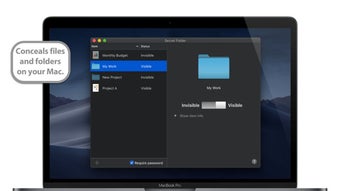
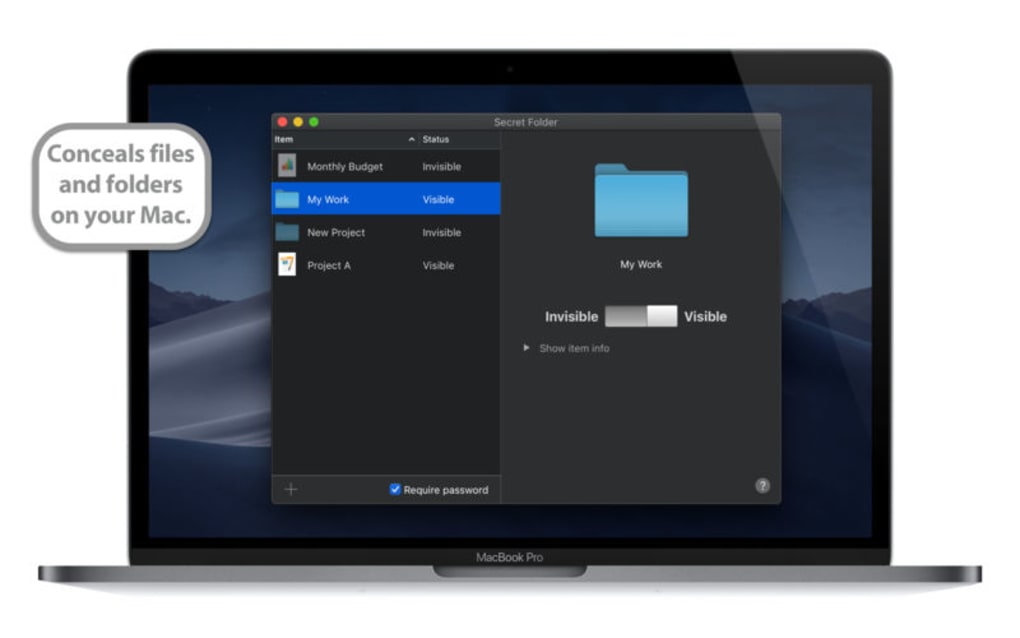
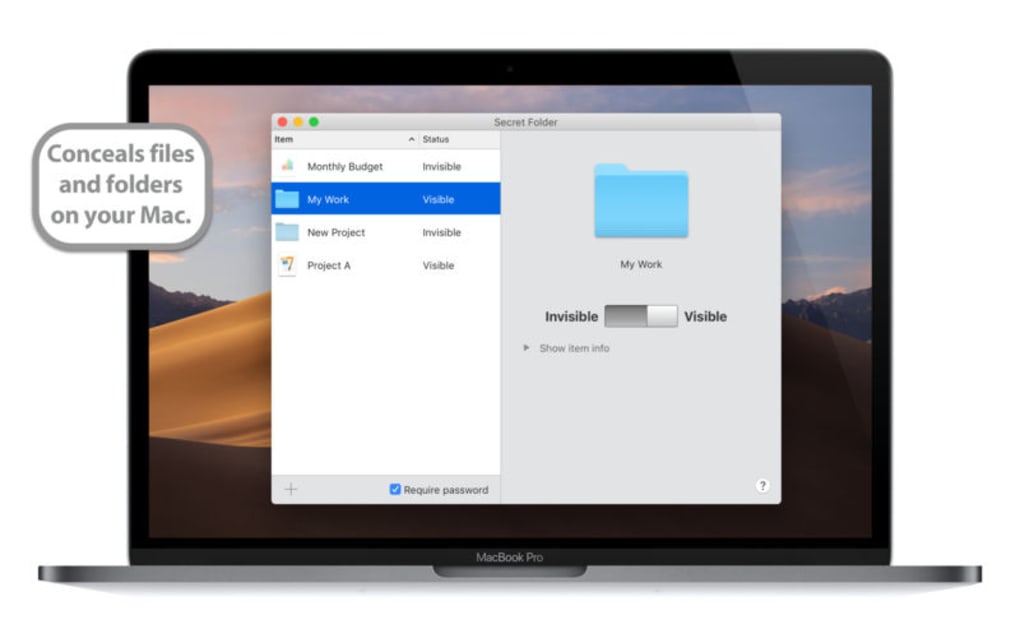
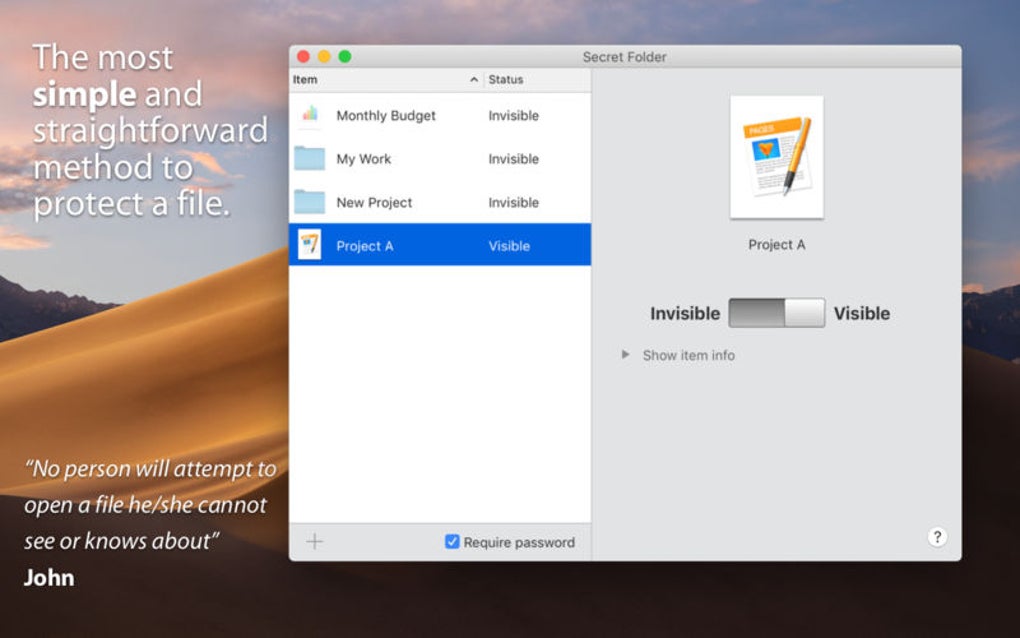
Once the application is running, click the “Add Folder” button, browse to the directory you wish to conceal, and press “Hide”. The folder disappears from File Explorer or Finder instantly. To view hidden items, open Secret Folder, select the concealed directory, and click “Show”. If you have the premium version, you’ll be prompted for your password before the folder becomes visible.
System Requirements (itemprop="operatingSystem")
- Windows 10, Windows 11 (64‑bit)
- macOS Catalina (10.15) or later (64‑bit)
- Minimum 2 GB RAM, 50 MB free disk space for installation
- Internet connection required for updates and license verification (premium)
The app is built with native APIs, so you won’t encounter compatibility issues with third‑party file managers or cloud‑sync services. However, hidden folders won’t be indexed by Windows Search or Spotlight, which is intentional to maintain privacy.
Pros, Cons, FAQ & Conclusion
Pros & Cons
- Pros:
- Fast, one‑click hiding without performance penalties.
- Cross‑platform support for Windows and macOS.
- Lightweight installer and low memory usage.
- Premium features add password protection and scheduling.
- Secure, signed updates keep the app current.
- Cons:
- Does not provide encryption; hidden files are still accessible to advanced users.
- Free version lacks password protection.
- Auto‑hide scheduler is only available in the paid tier.
- Hidden items are not searchable via system search tools.
Frequently Asked Questions (FAQ)
Can Secret Folder hide files on external drives?
Yes. As long as the external drive is mounted and accessible, you can add its folders to Secret Folder and hide them using the same process as internal drives.
Is the hidden status permanent after a system reboot?
Absolutely. Secret Folder stores the hidden attribute in the file system metadata, so the concealment persists across reboots and user logins.
Will other users on the same computer see the hidden folders?
If they do not have access to Secret Folder, the folders remain invisible in standard explorers. However, an administrator could still view them, which is why the premium password feature is recommended for multi‑user machines.
Does Secret Folder interfere with cloud sync services like Dropbox or Google Drive?
The app only changes the folder’s hidden attribute; most cloud services respect this flag and will not sync hidden items unless you explicitly enable it in the service’s settings.
How can I revert a hidden folder back to normal visibility?
Open Secret Folder, select the concealed directory, and click the “Show” button. If you’re using the premium version, you’ll be prompted to enter your password before the folder is revealed.
Conclusion & Call to Action
Secret Folder strikes a balance between simplicity and functionality, delivering a fast, reliable way to keep personal or work‑related files out of casual view. While it does not replace full‑scale encryption tools, its lightweight design makes it perfect for users who need quick privacy without sacrificing system performance. The free version is sufficient for basic hiding, and the reasonably priced premium upgrade adds essential security layers such as password protection and scheduling. If you’re looking for a hassle‑free method to conceal files on Windows or macOS, give Secret Folder a try today—download the installer, hide a folder, and experience a cleaner, more private workspace instantly.







